 Do you want the best headset?


If you want clearer calls in a noisy office, on a walk, or while working from home, Voice Isolation on iPhone can help reduce background noise and keep the focus on your voice.
This guide shows you how to turn on Voice Isolation on iPhone in iOS 18 and later, where to find it during a call, when it works, and what to do if the option does not appear.
Quick Answer
To enable Voice Isolation on iPhone:
- Start a supported call.
- Open Control Center during the call.
- Tap Phone Controls or the available audio controls.
- Select Voice Isolation.
If you do not see the option, check your iOS version, confirm the call type supports it, and try again while a call is active.
What You Need to Know First
- Voice Isolation works on supported iPhone models and software versions.
- For regular phone calls, you need iOS 16.4 or later.
- For FaceTime and supported apps, availability can vary by device and app.
- If you use speakerphone, Voice Isolation can sometimes make your voice sound choppy. In that case, switch to Standard or use your iPhone normally without speakerphone.
- If you take work calls often, using a good headset with Voice Isolation usually gives the best results in noisy places.
Compatible Apple Devices
- iPhone XR, iPhone XS, and later
- iPad 8th generation or later
- iPad Pro 11-inch models
- iPad Pro 12.9-inch 3rd generation or later
- iPad Air 3rd generation or later
- iPad mini 5th generation or later
- Mac models from 2018 or later
How to Enable Voice Isolation on iPhone
Step 1
During a call, swipe down from the top-right corner of your iPhone to open Control Center, then tap Phone Controls.

Step 2
When Phone Controls opens, select Voice Isolation.

What the iPhone Audio Modes Mean
Automatic: Lets iPhone choose the best audio profile for your environment.
Standard: Uses normal voice processing for the most natural sound.
Voice Isolation: Reduces background noise so your voice comes through more clearly.
Wide Spectrum: Captures more surrounding sound, which can help when multiple people are speaking in the same room.
Why Voice Isolation May Not Be Showing Up
- Your iPhone is not on a supported iOS version.
- You are not in an active call.
- The app or call type does not currently support the feature.
- Your current audio route or speakerphone setup is affecting the available options.
How to Check Your iOS Version
Step 1
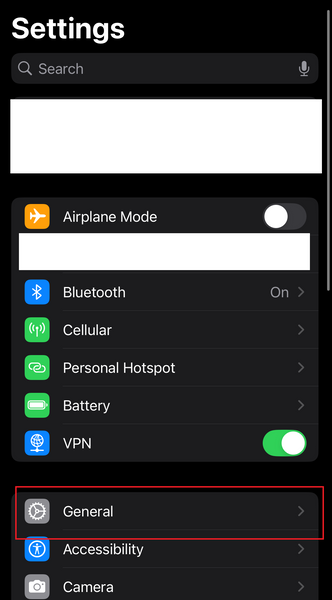
Go to Settings > General.
Step 2
Tap About.

Step 3
Your current iOS version appears here. If you need to update, go back to General > Software Update.

Troubleshooting Tips
- End the call and start a new one, then check Control Center again.
- Update your iPhone to the latest iOS version available to your device.
- Turn off speakerphone if your voice sounds cut off or inconsistent.
- Try using earbuds or a headset if you need clearer audio in noisy environments.
Voice Isolation on iPhone FAQ
What does Voice Isolation do on iPhone?
It reduces background noise and helps keep the focus on your voice during supported calls.
Where is Voice Isolation on iPhone?
You can find it in Control Center during an active supported call.
Why do I not see Voice Isolation on my iPhone?
Make sure your iPhone is on a supported iOS version and that you are in an active call that supports the feature.
Does Voice Isolation work on regular phone calls?
Yes, on supported iPhones running iOS 16.4 or later.
What is the difference between Standard and Voice Isolation?
Standard keeps your voice sounding more natural, while Voice Isolation reduces background noise more aggressively.
Does Voice Isolation always sound better?
Not always. If you are using speakerphone, Standard may sound more consistent. Voice Isolation usually works best with the iPhone mic close to you or with a good headset.
If you use your iPhone for work calls, meetings, or customer conversations, pairing Voice Isolation with a quality headset can improve call clarity even more. If you are not sure which headset is best for your setup, use our headset quiz tool or contact us for a tailored recommendation.