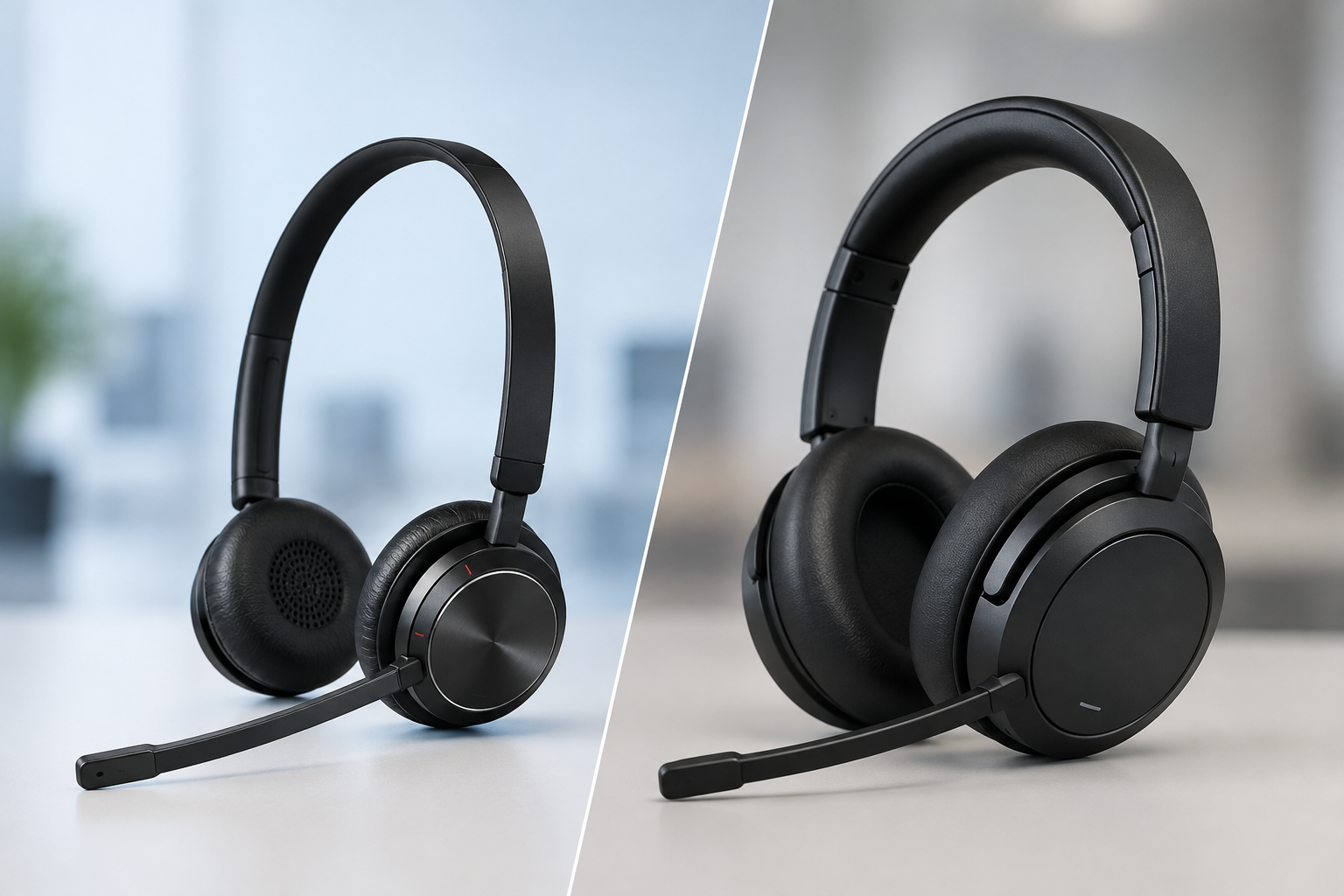
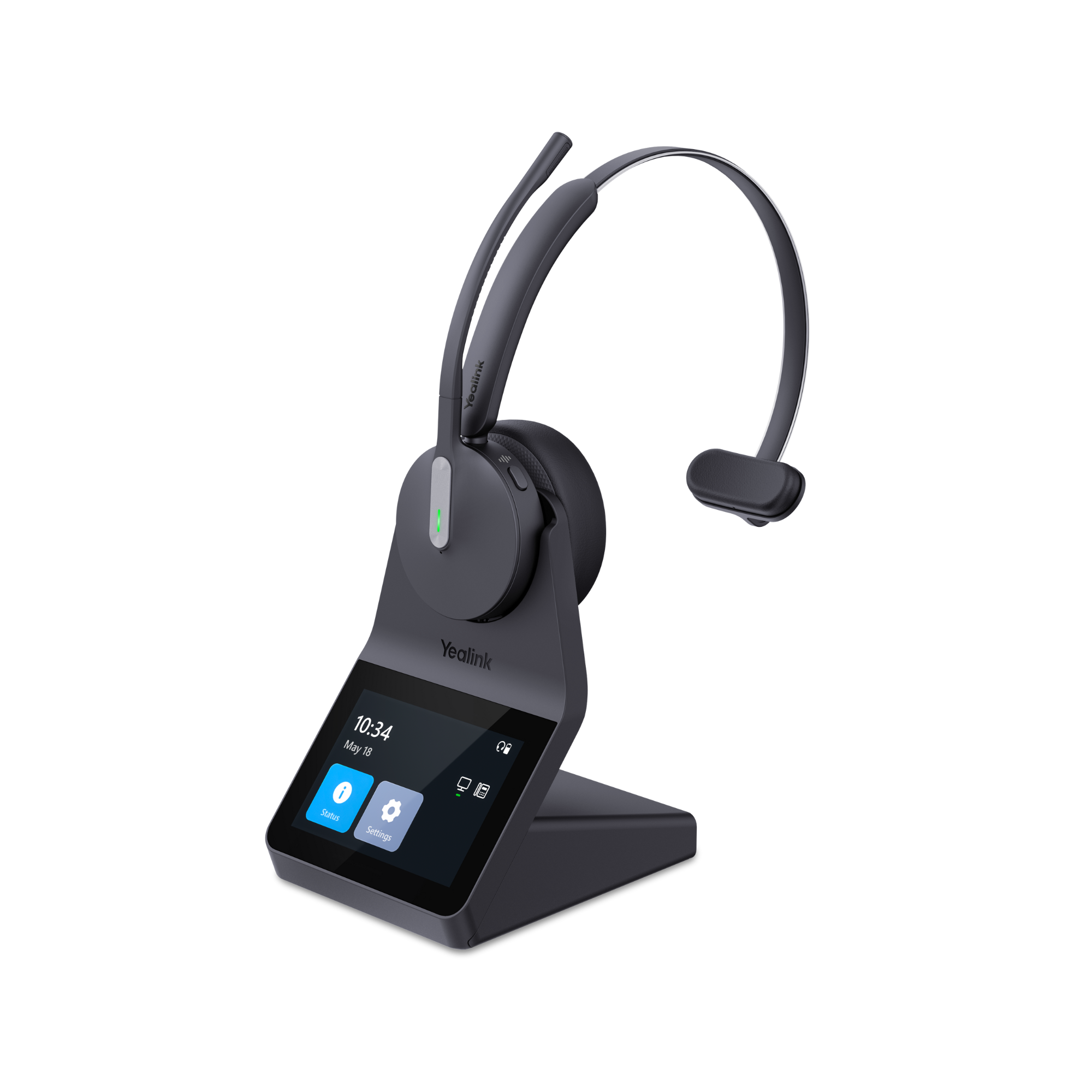
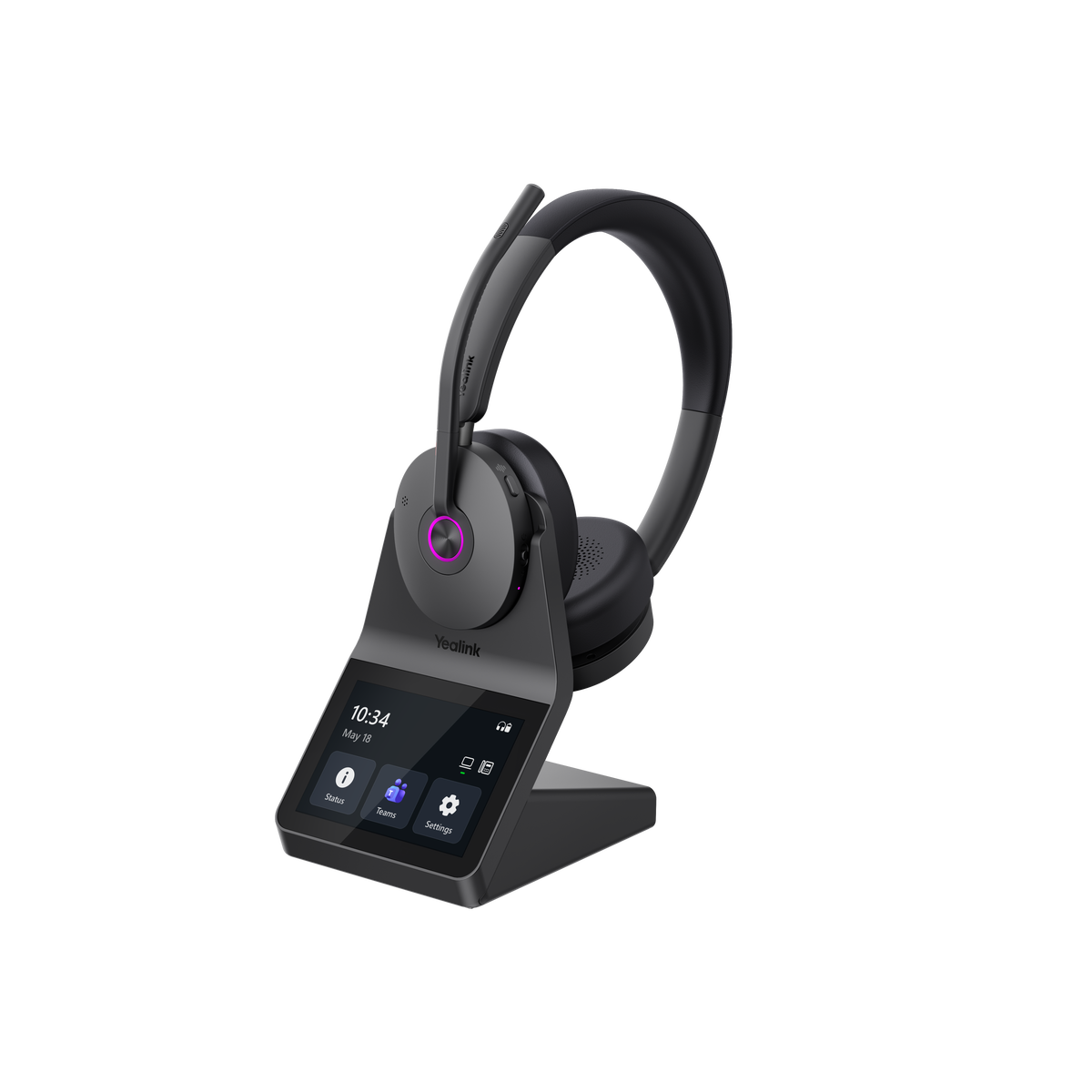
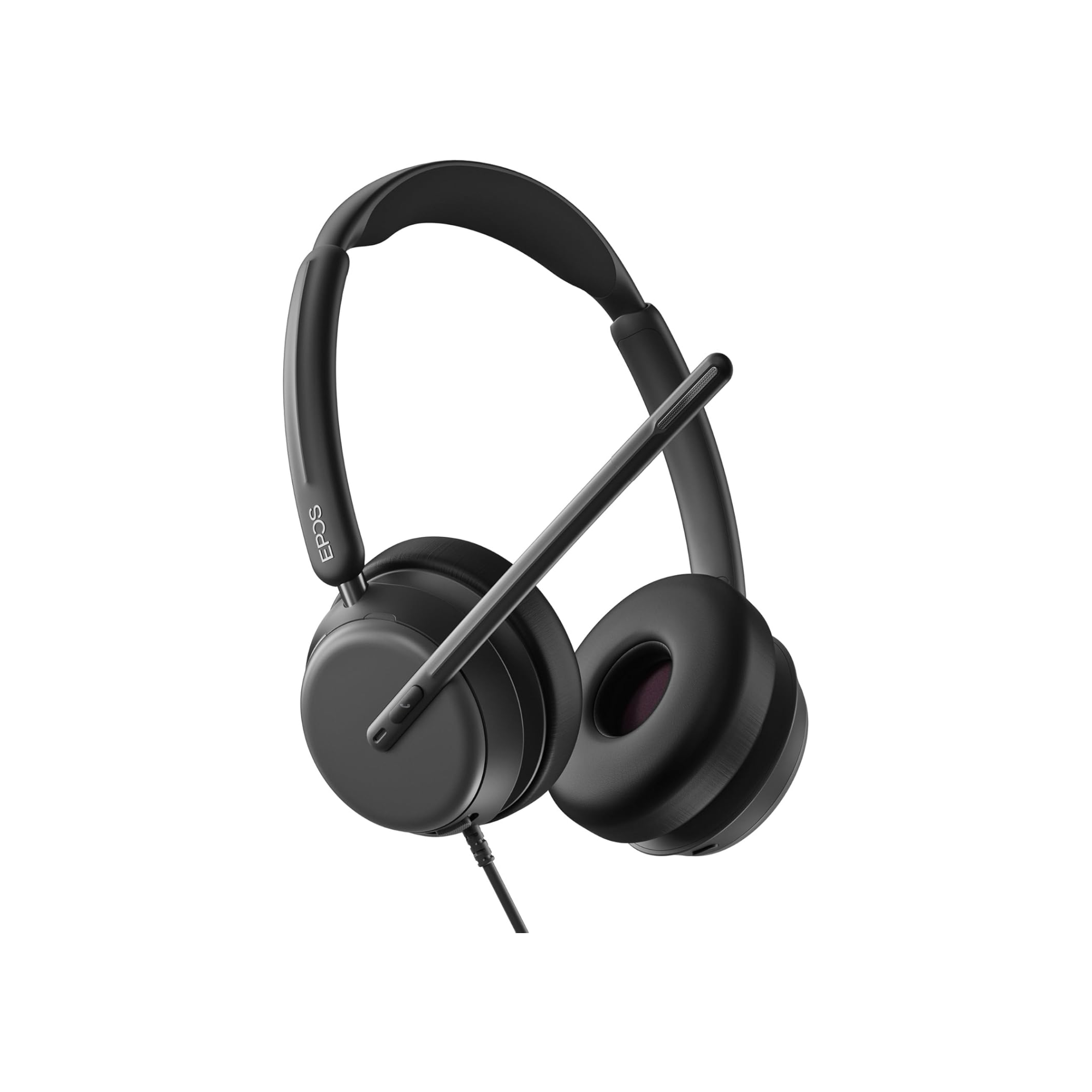
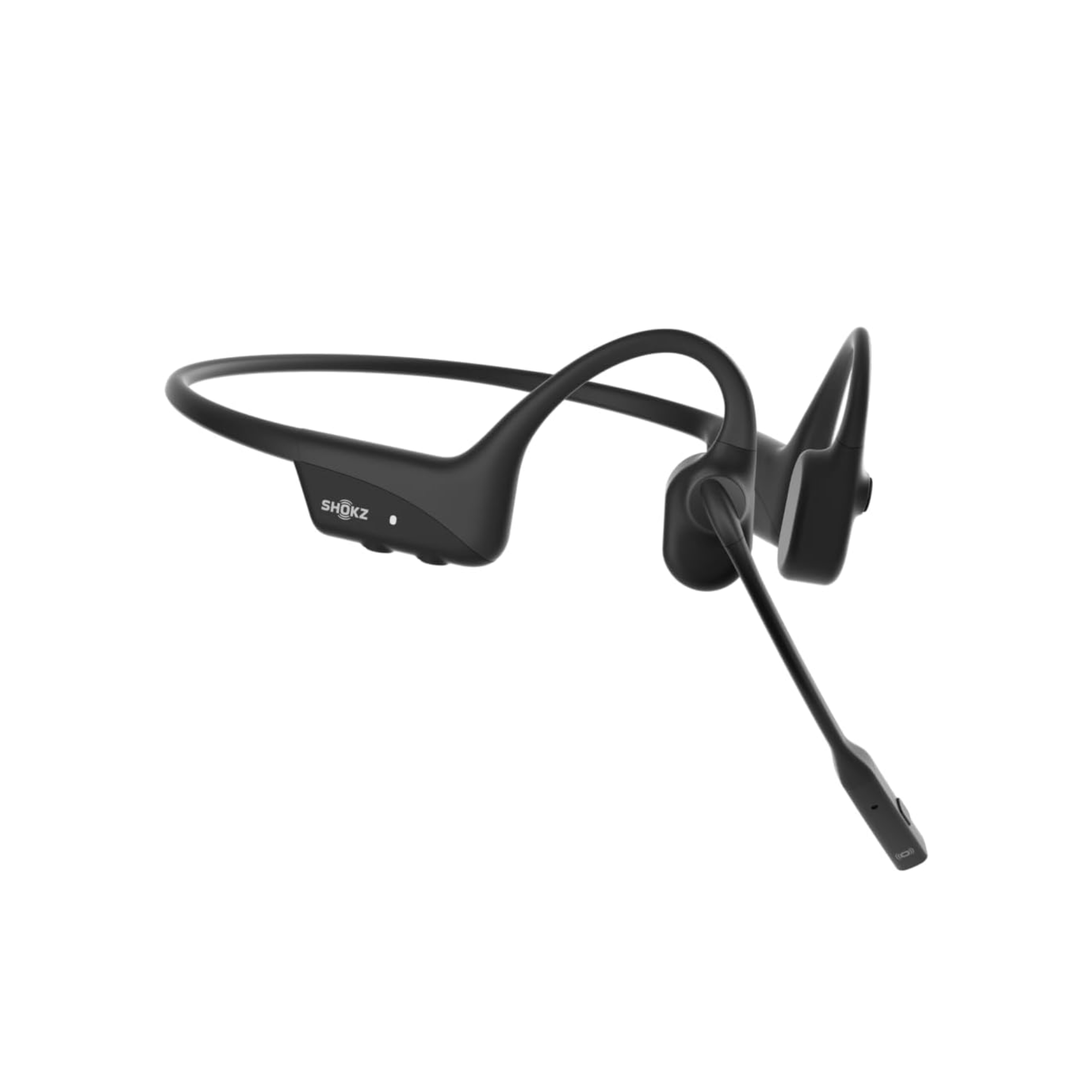
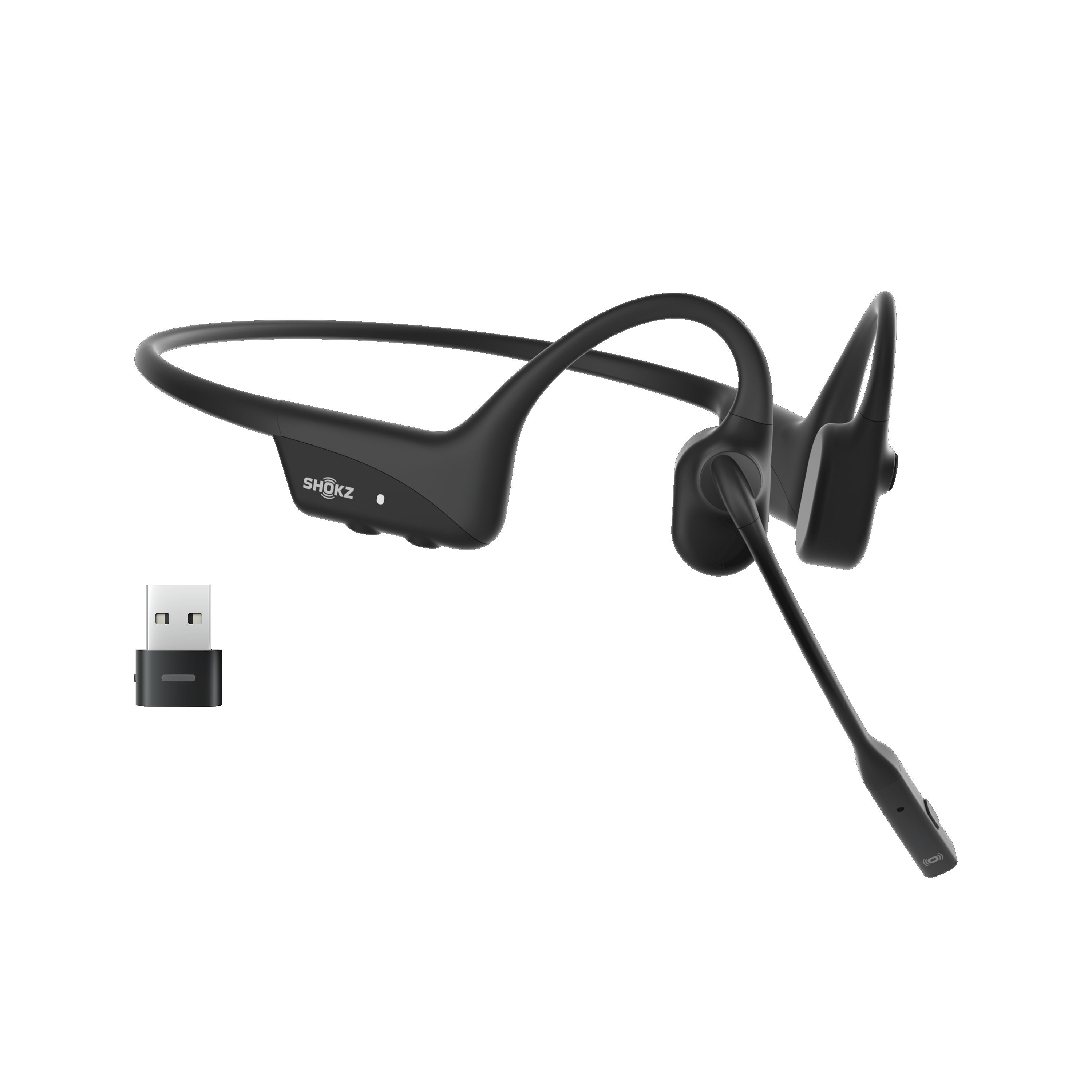
Do you want the best headset?
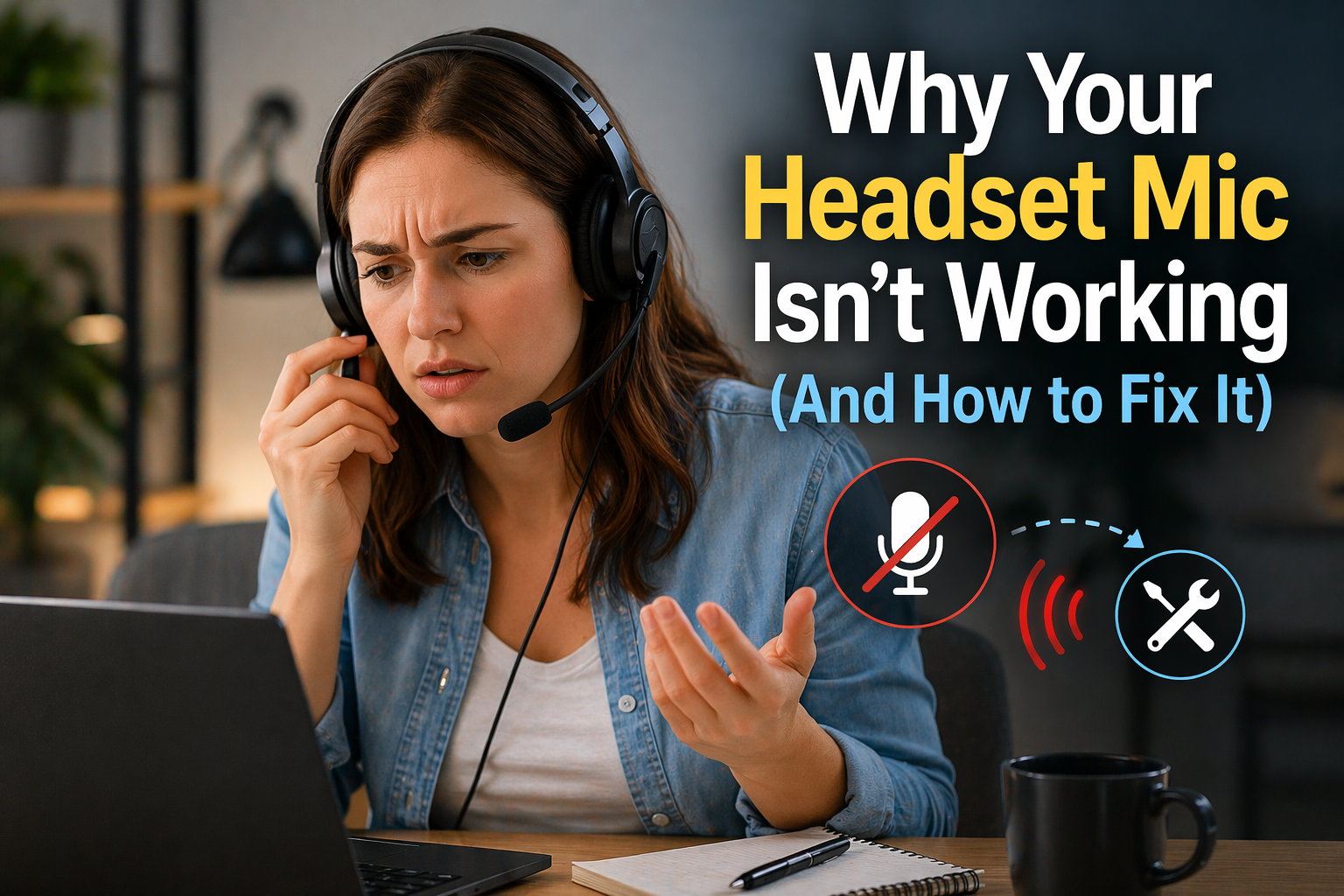
If your headset microphone isn’t working, it can be incredibly frustrating, especially when you’re on an important call and no one can hear you.
Whether you’re working from home, in an office, or in a call center environment, microphone issues can disrupt communication, slow productivity, and create unnecessary stress for you, and your callers.
After helping businesses troubleshoot headset issues for over 30 years, we’ve found that most microphone problems come down to a handful of common causes, and the good news is, they’re usually easy to fix.
In this blog, we’ll walk you through why your headset mic isn’t working and how to fix it based on your setup.
In many cases, the issue comes down to how your headset is connected, configured, or being recognized by your device.
In some cases, microphone issues can also be tied to broader connection problems, like when your headset keeps disconnecting during calls.
Quick Fix: Why Your Headset Mic Isn’t Working
If you need a fast answer, here are the most common causes:
- Microphone muted or disabled - check mic setting in your computer, check to see if the headset microphone is muted (button on headset, or on some models, microphone boom arm is raised, or partially raised, check if microphone is muted in your application)
- Wrong input or audio device selected - check in your computer, and application which audio device is selected
- Loose or faulty cable/connection - try a different USB port, wiggle cables to see if audio returns briefly, try a different cable
- Bluetooth or wireless connection issues - unpair, and repair device, double check settings
- App or software settings (Teams, Zoom, etc.) - make sure in your App that the right audio device is selected, update firmware.
Continue reading for detailed explanations and fixes.
The Most Common Reasons Your Headset Mic Isn’t Working

1. Microphone Is Muted or Disabled
This is one of the simplest issues, and also one of the most common. It’s easy to overlook because everything else appears to be working normally, but a single setting or button can completely block your microphone.
What’s happening:
-
The mic may be muted on the headset itself
-
The mute function could be activated in your software or device settings or in your computer settings
-
Some headsets automatically mute when the boom arm is flipped up
Symptoms:
-
Others can’t hear you at all though you might be hearing them
-
No sound is detected from your mic
-
You appear muted in apps like Teams or Zoom
How to fix it:
Before changing any settings, start with the basics, this is often a quick fix.
-
Check the mute button on your headset or inline controller if you’re using a wired headset.
-
Make sure the microphone boom is positioned correctly, and not in the upright position, or somewhat elevated as this can trigger the mute function on headsets equipped with microphone booms that mute the microphone when raised.
-
Verify that your mic isn’t muted in your computer or app settings - this is more common than you might think.
-
Make sure that your firmware is up to date. Surprisingly, outdated firmware can cause a wide variety of problems, and by updating it, you’d be surprised by how many issues can be resolved.
2. Wrong Input Device Selected

If your mic isn’t working, there’s a good chance your system is simply listening to the wrong device. This happens frequently when multiple audio devices are connected.
What’s happening:
-
Multiple audio devices are connected (built-in mic, webcam, headset, conference phone etc)
-
The system defaults to a different input source causing the audio on your headset to not be heard
Symptoms:
-
Mic does not work, or works inconsistently
-
Your voice is picked up faintly or from the wrong device
-
Switching apps causes mic to stop working
How to fix it:
The goal here is to make sure your headset is the primary microphone your system uses.
-
Go to your sound settings on your computer and select your headset as the default input device
-
Check microphone settings inside apps like Teams or Zoom and make sure the device you’re using is the one selected as the primary microphone
-
Disable unused audio devices if necessary to avoid conflicts
3. Loose or Faulty Cable / Connection

Physical connection issues are more common than most people expect, especially with wired headsets or heavily used equipment.
What’s happening:
-
USB or audio jack connections may be loose
-
Cables may be worn or damaged over time
-
USB ports may not be delivering consistent power or data
Symptoms:
-
Mic cuts in and out when moving the cable
-
No mic detection at all
-
Intermittent audio issues
-
Static or compromised audio quality
How to fix it:
Think of this step as eliminating any physical weak points in your setup.
-
Disconnect, then reconnect your headset securely
-
Try a different USB port as the current port made be faulty - it happens more than you’d think
-
Avoid USB hubs if possible - direct connections are better than another link in the chain
-
Replace damaged cables if needed - check for frayed cables, broken connectors, wiggle any connectors to see if you hear anything abnormal, if so, consider replacing the cable/connector.
In some cases, switching to a different connection type altogether can make a big difference, which is why it’s helpful to understand the trade-offs between wired vs wireless headsets before deciding on a long-term solution.
4. Bluetooth or Wireless Connection Issues

Wireless headsets add convenience, like a cord-free communication experience without being tied to the desk, but they can also introduce variables that affect microphone performance.
What’s happening:
-
Bluetooth interference from other devices
-
Weak signal or poor pairing
-
Inconsistent connection between headset and device
Symptoms:
-
Mic cuts in and out intermittently
-
Poor audio quality or robotic sound
-
Mic works sometimes but not consistently
How to fix it:
The goal is to stabilize the connection between your headset and device.
-
Move closer to your device
-
Use a USB dongle for a more stable connection if connecting wirelessly via Bluetooth
-
Unpair and then re-pair your headset
-
Download the latest version of firmware
-
If using a wireless headset, make sure the battery has a good charge, and if it’s old, the battery may need to be replaced
-
Some wireless headsets with bases have a compatibility switch, make sure that this is set in the right position based on the make and model of phone you’re using. More on this can be found in the headset user guide.
-
Consider switching to a more reliable connection type if issues persist - e.g. usb dongle vs. wireless Bluetooth, wired headset vs. wireless, DECT headset vs. Bluetooth.
If you’re running into ongoing connection or audio issues, it’s worth understanding how different wireless technologies compare, especially when looking at Bluetooth vs DECT headsets and how they perform in real-world environments.
5. App or Software Settings (Teams, Zoom, etc.)

Sometimes the issue isn’t your headset at all, it’s the app you’re using. Each platform has its own audio settings, and they don’t always sync perfectly with your system. That makes this a logical place to check to make sure you have the settings correct based on the device you’re using.
What’s happening:
-
The app is set to use a different microphone - different headset, computer mic etc
-
Permissions may be disabled
-
Software updates may cause temporary glitches
Symptoms:
-
Mic works in one app but not another
-
No input detected in specific programs
-
Settings reset after updates
How to fix it:
Focus on aligning your app settings with your system settings.
-
Check audio settings within the app
-
Ensure microphone permissions are enabled
-
Restart the application or your device
-
Make sure the microphone isn’t muted
Real-World Insight: Where Mic Problems Actually Show Up
Headsets are designed to work well, but issues can still show up in real work environments:
-
Busy offices with multiple connected devices
-
Remote setups with mixed hardware
-
Users switching between multiple platforms throughout the day
-
Users switching between different devices throughout the day
In these situations, setup and configuration matter just as much as the headset itself.
Even factors like whether you’re using a mono vs stereo headset can influence how clearly you’re heard and how well you stay focused in different environments.
When It’s Not Worth Fixing

At some point, troubleshooting stops being worth the time and effort, especially if the problem keeps coming back. This may inspire you to contact your headset vendor, or the headset manufacturer for additional troubleshooting help.
You may want to replace your headset if:
-
The microphone fails repeatedly
-
The headset is several years old
-
It wasn’t designed for your environment
Many things can lead you to conclude that the headset simply needs to be replaced. That will vary from situation to situation, but if you exhausted all the troubleshooting, and vendor/manufacturer support, and the problem persists, then the next logical step is to consider a new and/or different headset.
The Right Headset Can Prevent These Issues
Choosing the right headset from the start can eliminate many microphone issues before they happen.
-
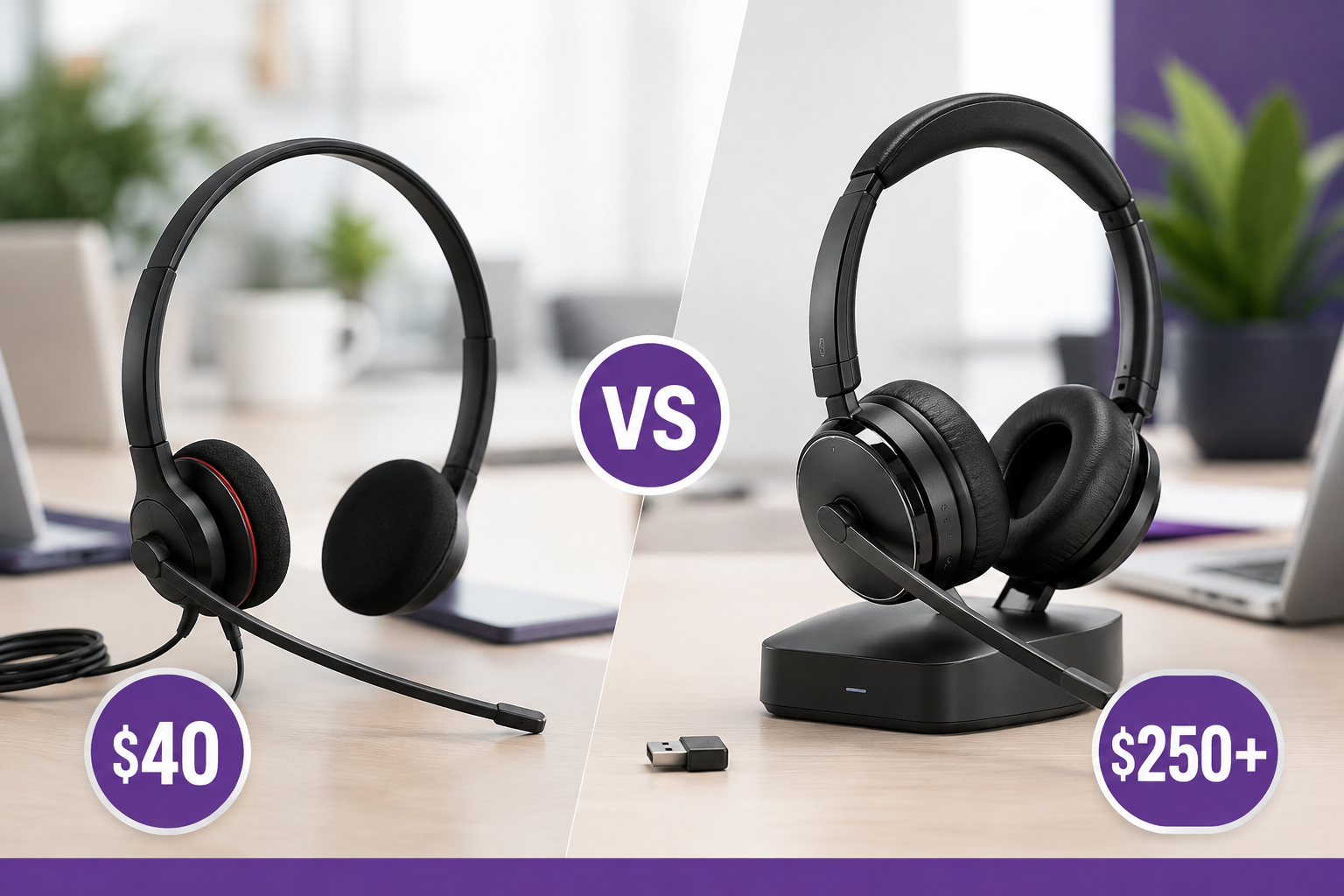
Wired headsets offer the most stable connection
-
USB dongle-based wireless headsets are more reliable than native Bluetooth, which is why it’s helpful to understand the differences between wired vs wireless headsets when choosing the right setup.
-
DECT headsets can offer multi-device connectivity with most being connected to computers and desk phones via a direct connection which can provide a more reliable experience.
-
Business-grade headsets are built for consistent performance. They’re designed for all day use in some of the most demanding environments like call centers. Good headsets may cost a little more, but they’re worth it in the long run.
Final Thoughts
Most headset microphone issues come down to settings, connections, or compatibility.
Once you identify the cause, the fix is usually straightforward.
If problems continue, it may be time to upgrade to a headset designed for your specific setup. The wrong headset can lead to many different problems, which can all be eliminated if the headset selected is aligned correctly with your specific needs.
Some vendors, and most manufacturers offer technical support. Don’t rule out contacting them for help in analyzing and resolving your issue.
Need Help Choosing the Right Headset?

If you’re not sure what’s causing your issue, or want help finding a reliable solution, contact us at Headset Advisor.
We’ll help you troubleshoot your setup and recommend the right headset so you can get back to clear, consistent communication.
We’ve specialized in helping businesses with their communication needs since 1994. Check us out on Google where we have over 800 5-star reviews. If you have questions, we’re here to provide answers.