Do you want the best headset?
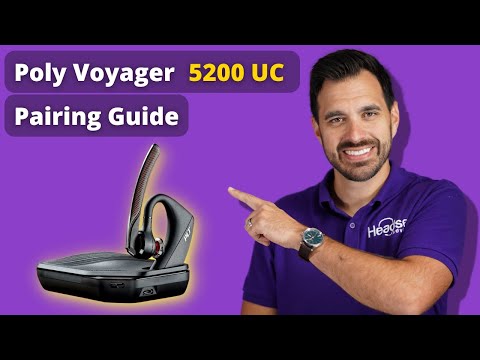
If you currently use the Poly Voyager 5200 UC, and you can figure out how to get it paired, then this Blog may be a help to you.
In it, I’ll cover how to pair up the 5200 UC to a computer using the included BT600 USB Dongle/Adapter. I’ll also go over a couple of ways to pair it up to your mobile device.
But, before I begin, I would like to mention that I recorded a Youtube video on this. I know a lot of people, myself included, like, or prefer to watch video content over laboring over reading it. So, if you’re like me, and countless others, make sure to check out my video.
Poly Voyager 5200 UC Pairing Video
If you’re still reading then come along as I explain some pairing processes for the Poly Voyager 5200 UC. I’ll break it down by pairing to a computer, and secondly, pairing to a mobile device.
Pairing to a computer using the USB Adapter - option 1
If you’re wanting to connect your Poly Voyager 5200 UC to a computer, you’ll want to make sure that you have:
- A charged headset top
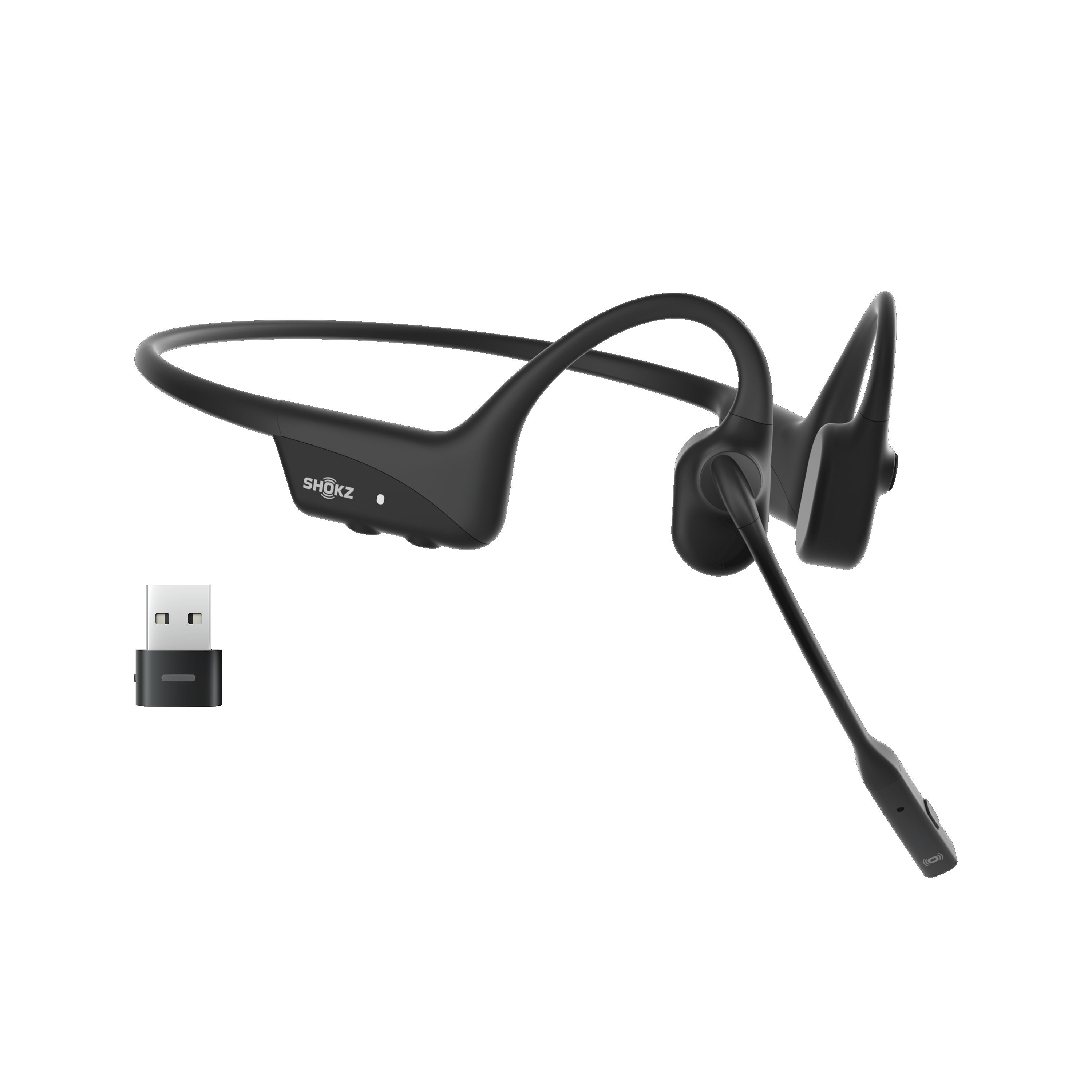
- The USB Dongle/Adapter
- Your computer
Once you have everything, follow these simple steps to get your 5200 UC connected to your computer.
- Insert the USB Dongle into your computer USB slot
- Locate the small button located on the side of the USB Dongle/Adapter 3. Using a pin, end of a paperclip, or ink pen tip, press the button. 4. While pressing, hold it down until you see the end of the adapter flash red/blue 5. Turn on your Poly Voyager 5200 UC headset
- Press and hold down the call control button on the side
- Keep it pressed for about 3-5 seconds until you see the LED light flash red/blue 8. Allow the pairing process to complete, lights will normalize, and you can begin using the Voyager 5200 UC.
Pairing to a computer using the USB Adapter - option 2
Another way to pair up your Poly Voyager 5200 UC is by downloading the Poly Hub Software. Below are the steps you would go through in order to successfully get your headset connected using this method.
- Download the Poly Hub Software
- Insert the USB Adapter/Dongle in the USB port on your computer
- In the Hub software, go to the “Settings” tab
- Select “general”
- You’ll see “pairing mode” listed, switch this to the “on” position
- Click Apply
- Watch for the USB dongle to flash red/blue
- Turn on your Poly Voyager 5200 UC
- Click and hold the call control button until you see the red/blue light flash on the headset.
- Wait until the pairing process completes, and your headset is now ready to use
Pairing the Poly Voyager 5200 UC to a mobile phone or tablet
If you have a Poly Voyager 5200 UC and you want to pair it up to a mobile phone, or tablet, here’s how you can do this.
- Go to “settings” on your phone or tablet
- Locate and select the Bluetooth tab
- Your phone or tablet should go into the search mode
- Make sure your Voyager 5200 UC is on
- Press and hold the call control button until you see red/blue light flash 6. On the screen of your device, you should see the PLT headset appear as an option. Select this.
- Wait for the device and the headset to finish pairing. Your device is now ready to use.
FOOTNOTE: If you are presented with the need to enter a passcode, insert 0000.
Still having pairing problems?
If you still can’t get your Poly Voyager 5200 UC paired up, feel free to contact us and we'll do our best to help.