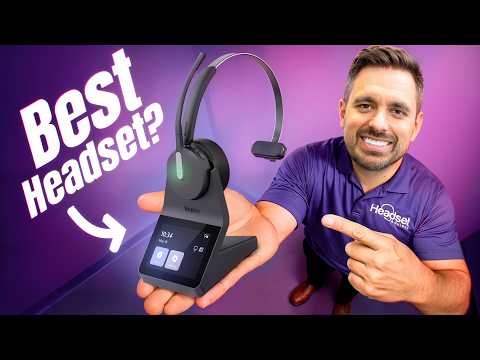
Do you want the best headset?
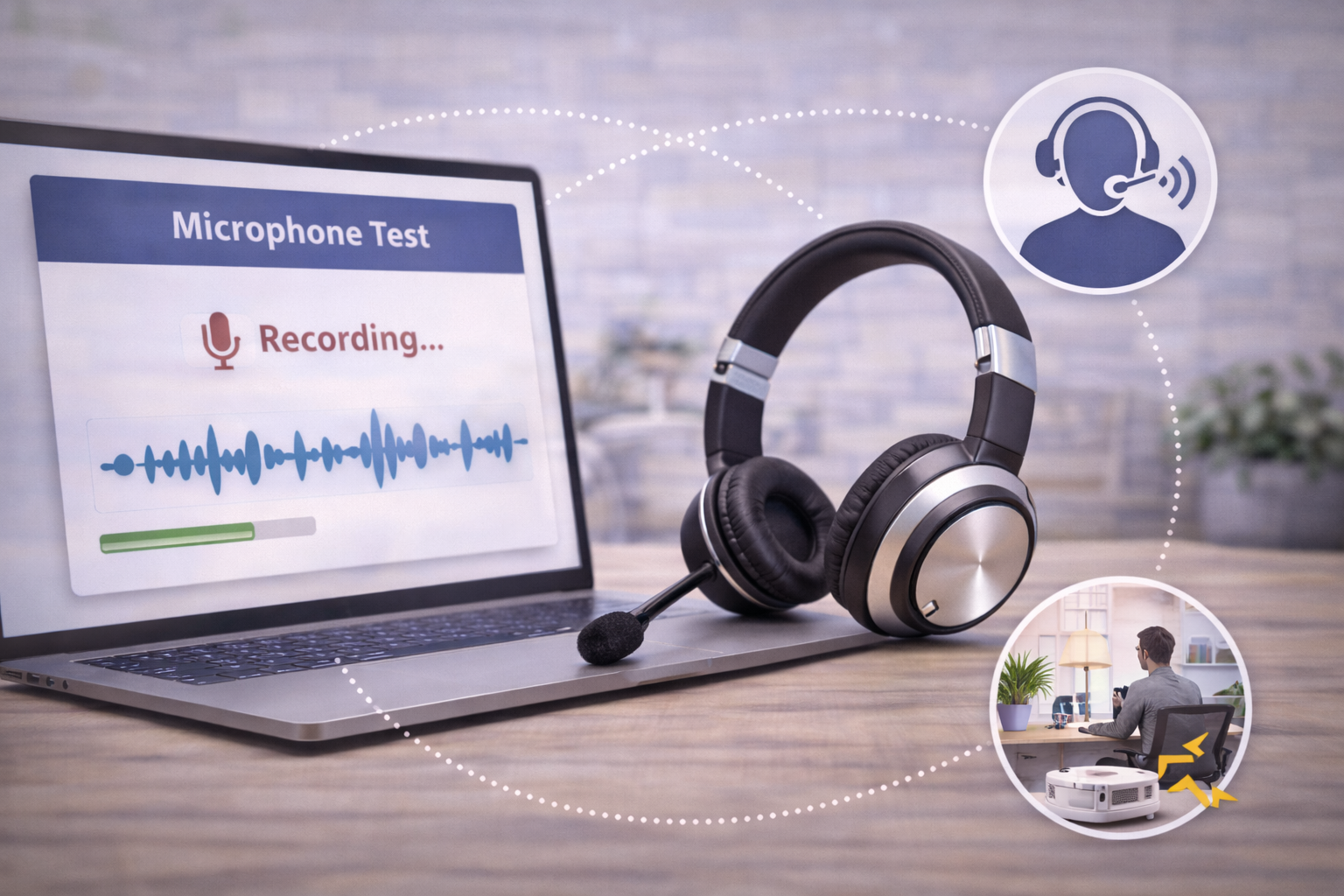
Most people never actually hear how they sound on calls.
You hear others through your headset, but what your microphone is sending out can be a completely different experience for the person on the other end.
That’s why microphone issues often go unnoticed until someone points them out, if they do at all.
The good news is, testing your headset microphone is quick and easy, and it can help you identify problems before they impact your calls. Knowing how you sound to others can provide you with the confidence of knowing that you sound loud, clear and professional on your calls and meetings.
Why Testing Your Microphone Matters

What you hear is not what others hear.
Your headset speakers may sound clear, but your microphone could be:
-
Picking up background noise
-
Too far from your mouth
-
Set at a volume that’s too low, or high
-
Using the wrong device entirely
These issues can affect how clearly you’re heard, even if everything sounds fine on your end.
Taking a few moments to test your microphone can give you a clear picture of what others are actually experiencing. Assuming you sound good isn’t the best path to take because there’s a chance that you don’t sound as good as you think.
Common Problems You Can Detect

A simple microphone test can quickly reveal issues such as:
Poor Microphone Positioning
If your mic is too close or far away, your voice may sound faint, inconsistent or too loud.
Background Noise
You may not notice it while speaking, but fans, pets, typing, or conversations nearby can be picked up by your microphone.
Low or Uneven Volume
If your microphone sensitivity is too low, others may struggle to hear you clearly. Set too high and you may be overwhelming your callers with too much volume.
Wrong Audio Device Selected
It’s more common than you might think. Your computer or application may be using a built-in microphone instead of your headset. This is something that can easily go undetected.
Bluetooth Limitations
Bluetooth headsets can sometimes reduce microphone quality during calls, which may not be obvious until you listen to a recording.
How to Test Your Headset Microphone

One of the easiest ways to test your microphone is to record yourself and listen to the playback.
This allows you to hear exactly what others hear and identify any issues right away.
You can use our microphone test tool to quickly record your voice and evaluate your audio quality. It gives you immediate feedback on clarity, volume, and background noise so you can make adjustments with confidence.
What Good Microphone Audio Should Sound Like

When your microphone is set up properly, your audio should sound:
-
Clear and natural
-
Consistent in volume that’s not too high, and not too low
-
Free from distortion
-
Minimally affected by background noise
If your recording doesn’t sound like this, there’s likely an adjustment that can improve your setup.
Quick Fixes Based on What You Hear

Once you’ve tested your microphone, small changes can often make a big difference.
Adjust Microphone Position
Move the microphone closer to your mouth, typically just below the lower lip and approximately two fingers width from the corner of your mouth.
Check Your Audio Settings
Make sure your headset is selected as both the input and output device in your computer and communication apps. This is often the cause of poor audio because your computer settings, or those in your application may have defaulted to a different device.
Reduce Background Noise
Try to minimize noise sources around you or reposition your workspace if possible. If these things aren’t possible, then consider pairing your headset with noise canceling software that works outside of your headset settings, and removes noise from both ends of the conversation.
No headset is designed to remove all the noise, so pairing it with software that's designed to remove background noise can be very helpful in establishing optimum sound quality.
Test Different Connections
If you’re using Bluetooth, try switching to a wired connection to compare audio quality. If plugging into a USB port, try plugging in to a different port, and try to avoid using a USB hub. Hubs can be problematic, and USB ports do fail, so trying a different one can solve your audio quality problems.
Restart or Reconnect Devices
Sometimes a simple reset can resolve unexpected audio issues. Most of us have had this experience in the past. A device is acting up, and following a simple reset/restart, the problem magically goes away. So, this is worth a try.
Perform a Firmware Update
It’s a good idea to always have the latest firmware. Having the newest release can solve problems, or avoid them before they become problems.
When It’s the Headset vs Something Else

Not all audio issues are caused by the headset itself.
In many cases, the problem is related to:
-
Settings
-
Environment
-
Platform limitations
If you’ve tested your microphone and made adjustments but still notice poor audio quality, it may be worth reviewing your overall setup or considering whether your headset is the right fit for your environment.
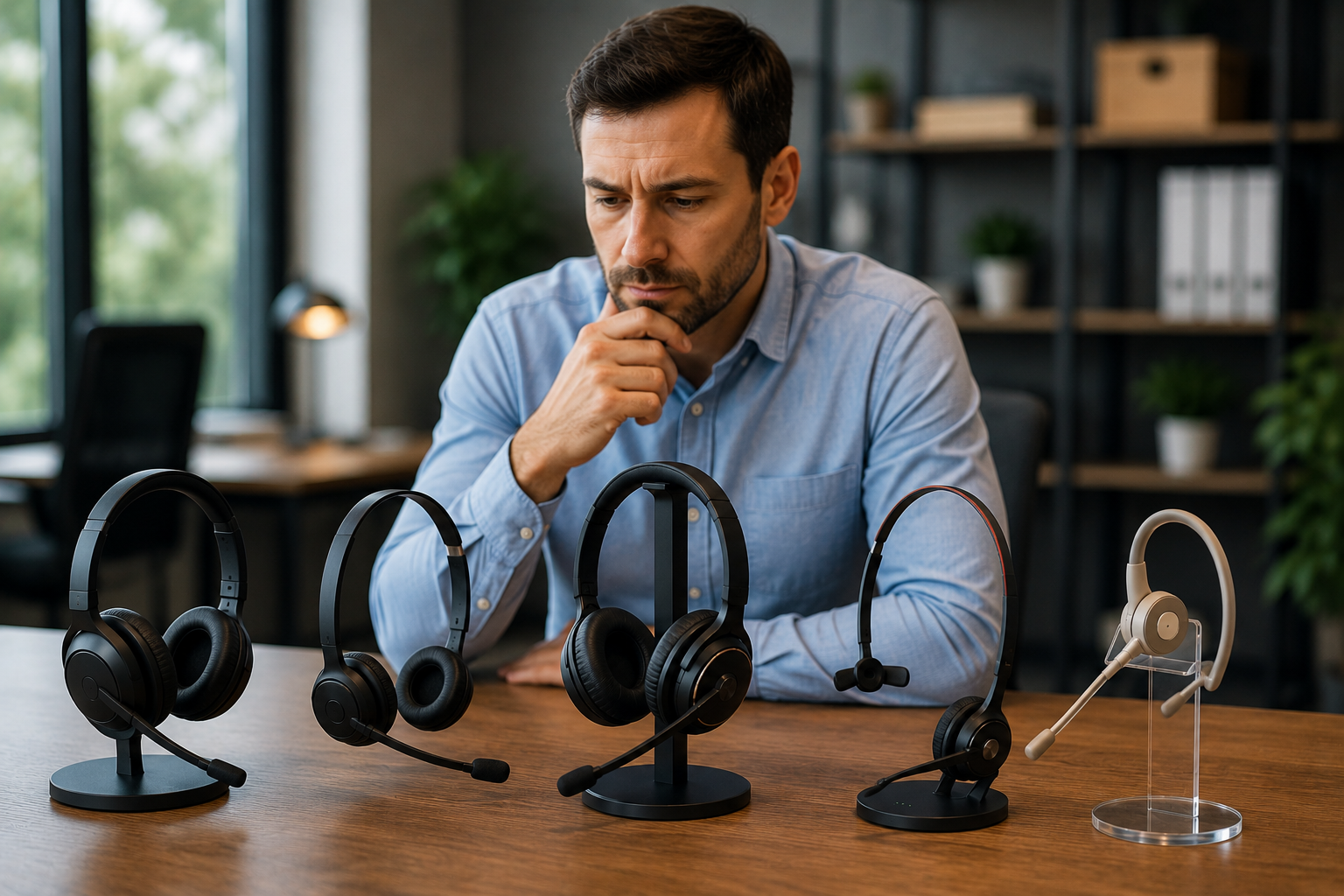
To help with the selection process, you may find it helpful to review our guide on how to choose the right headset for work.
Final Thoughts
Testing your headset microphone is one of the simplest ways to improve your call quality.
Instead of guessing what others hear, you can quickly know how you sound and identify issues and make adjustments that can have an immediate impact.
In many cases, small changes can lead to noticeable improvements without the need to upgrade your headset.
Need Help Improving Your Audio?

If you’ve tested your microphone and still aren’t getting the results you expect, there may be other factors at play, which could make getting some professional help a good call.
Headset Advisor has been helping customers improve their communication experience for over 30 years with over 800 5-Star reviews on Google. If you need help identifying the issue or finding the right solution, our team is here to help. So don’t hesitate to contact us if you need some assistance.