Do you want the best headset?
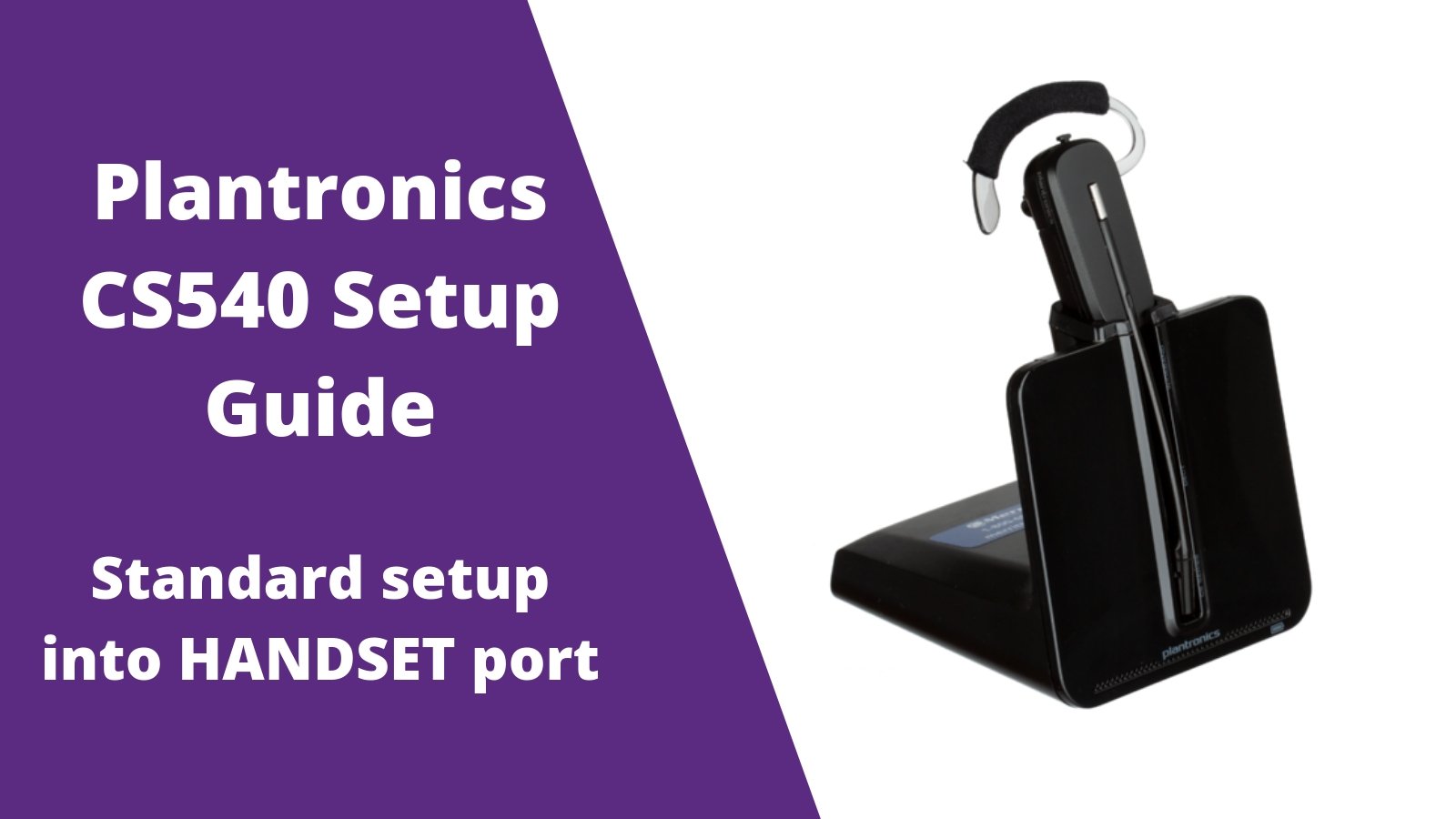
There's multiple ways to set up your Plantronics CS540 or C054 wireless headset. Follow this guide if your desk phone doesn't have a HEADSET port or you're setting your headset up using the HL10 Lifter. If you’re wondering about the differences between the C054 and C054A Plantronics, check out this detailed guide to avoid any confusion. For connectivity to your desk phone with a headset port, click here to follow the setup in that configuration.
Step 1
Plug one end of the Plantronics AC power adapter into a power outlet and plug the other end into your C054 charging base. It’s important to know that the C054A from Plantronics has slight differences in its setup, so be sure you have the right model for your needs.
Step 2
Plug one end of the included headset phone cord into the back of your C054 charging base.
Step 3
Unplug your desk phone handset.

Step 4
Plug the other end of your Plantronics C054 phone cord into the HANDSET port of your corded desk phone.

Step 5
Connect your handset to the small square box on your Plantronics C054 phone cord. This allows you to still be able to use your desk phone handset when needed. For a full breakdown of the C054 and C054A Plantronics differences, this guide will help you avoid potential issues.
Step 6- How to use your headset
A) Turn your headset on by pressing the silver button one time and releasing. To learn about C054A Plantronics features and how it compares to C054, click here.
 B) To answer/end calls or dial out, remove your handset then hang the handset back on the base of your phone when done with the call. *In order to answer/end calls when away from your desk phone using your C054 wireless headset, you'll need the HL10 Lifter or EHS cable (highly recommended). Contact us today to verify compatibility. If you’re unsure whether to choose the C054 or C054A Plantronics, this guide will help you decide and prevent any mistakes
*For other helpful setup guides visit the Plantronics CS540 headset setup resource center*
TROUBLESHOOTING
Now that your headset is set up, does everything work correctly and sound great? If not, refer to the suggestions below to help troubleshoot.
NO DIAL TONE
After making a test call, did you NOT hear a dial tone? If not, try the troubleshooting ideas below to help resolve this.
- Double check to make sure that you have everything connected as per the Plantronics C054 setup instructions to avoid connection issues.
- Make sure that ALL cords are pushed in fully and have 'snapped' into place, as this is crucial for ensuring the correct Plantronics C054 headset setup.
- Locate the compatibility switch and while on a call, move it to other positions until you hear a dial tone.
STATIC
When making your test call, you may hear static. If you do, try the troubleshooting tips below.
- Locate the compatibility switch on the bottom of the charging base and while on a call, move it to the other positions until the static is cleared up.
- Try removing the battery from the headset earpiece. Once removed, wait for a minute and then reinstall the battery.
- If items 1 and 2 above don't work, try removing the battery and unplugging the power from the wall outlet. Wait for a minute and then reinstall the battery, place it into the charging cradle and then plug the AC Power Adapter back into the wall power outlet.
ECHO
If you hear echo when on a call, the steps below should help to resolve this condition and fine-tune your Plantronics C054 setup guide.
- Locate the volume adjustment on your TELEPHONE. Set this to about the midpoint (half way between high and low).
- On the bottom of the charging base, locate the red dial that has an icon of a microphone. Set this on the number 2.
- Make sure that the microphone tip is approximately two fingers width from the corner of your mouth. Having the microphone too close to your mouth can cause sound quality issues.
- Try resetting your headset to complete your 2-step Plantronics C054 setup, which includes removing the battery from the earpiece, unplugging the AC Power Adapter from the wall outlet, and waiting
For a minute. Then, reinstall the battery, place the headset into the charging base and then plug the AC Power Adapter back into the wall outlet.
If you need additional troubleshooting assistance or help with your Plantronics C054 setup process, or setting up your Handset Lifter or Electronic Hookswitch Cable, feel free to contact us and we’ll be happy to assist you further, no charge!